
Build a ChatGPT Plugin: MCP, React & Sidebar

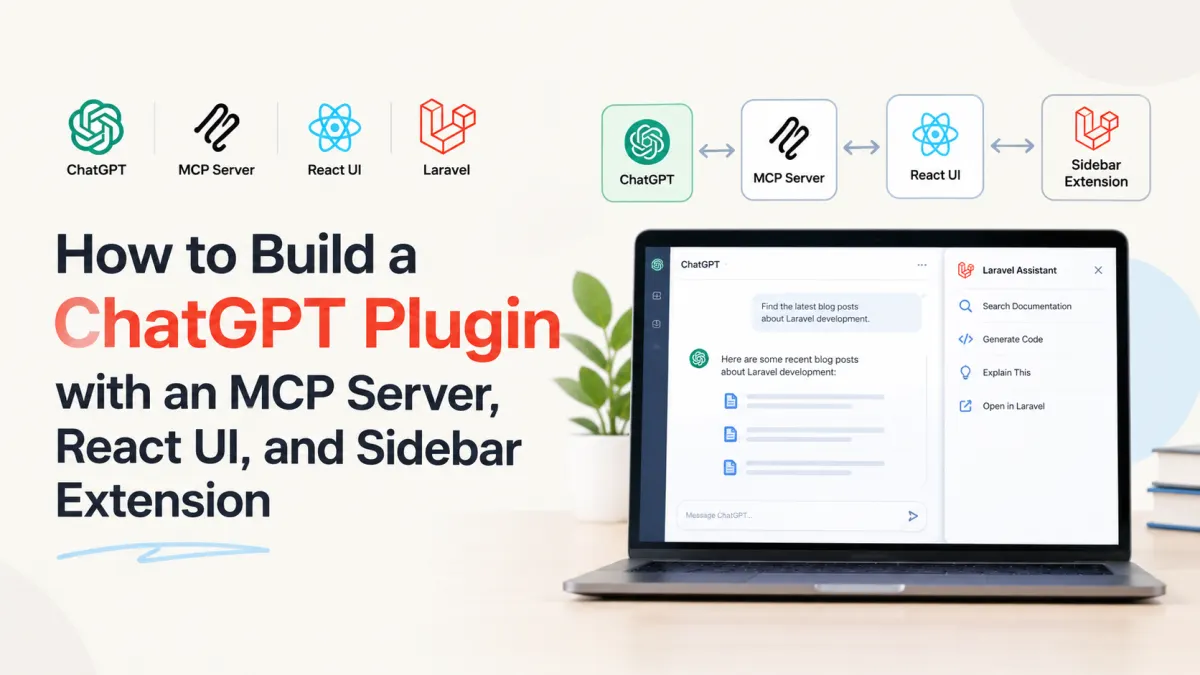
A tool that works in ChatGPT conversation is useful. But what if users need to open that same tool from the sidebar, explore its data in a React interface, and return to their conversation without switching applications?
you can build that experience using an MCP server, an MCP App, and OpenAI's Plugin Extensions.
This architecture is different from the original ChatGPT plugins built around REST APIs and OpenAPI specifications.
The modern approach uses the Model Context Protocol (MCP) to expose capabilities, an optional embedded interface for visual interaction, and extension metadata to integrate with ChatGPT's sidebar and other surfaces.
In this tutorial, we'll build a small project dashboard with three capabilities:
ChatGPT can retrieve project information using an MCP tool.
A React component displays those projects inside ChatGPT.
A sidebar extension provides a dedicated entry point to open the dashboard.
The example uses Node.js for the MCP server and React for the interface. If your main application runs on Laravel, the MCP server can also act as an adapter to your existing PHP APIs.
The goal is to understand the integration without introducing unnecessary infrastructure.
1. Understand the New ChatGPT Plugin Architecture
Before writing code, it's worth separating three concepts that are easy to confuse.
| Component | Responsibility |
|---|---|
| MCP server | Exposes tools and structured data to ChatGPT |
| MCP App with React | Renders an interactive interface inside ChatGPT |
| OpenAI Plugin Extension | Adds entry points such as the sidebar and conversation panels |
A plugin can use an MCP server without providing any visual interface. Likewise, not every plugin needs a sidebar entry.
For our project dashboard, all three are useful.
The flow looks like this:
ChatGPT
   |
   +-- Conversation
   |      |
   |      +-- MCP tool: list_projects
   |
   +-- Sidebar
          |
          +-- Project Dashboard (React)
                    |
                    +-- MCP Apps bridge
                              |
                              v
                         MCP Server
                              |
                              v
                         Project Data
The important detail is that the React component doesn't need to communicate directly with your backend through an ordinary browser API.
An MCP App runs in a sandboxed iframe and can request tools through the MCP Apps bridge. The host mediates those calls.
This gives you a shared server capability that both ChatGPT's model and your visual interface can use.
According to OpenAI's plugin architecture documentation, plugins can combine skills, MCP servers, and optional UI. We only need the MCP server and UI for this example.
2. Build the MCP Server
We'll create a read-only dashboard that lists three sample projects.
This is deliberately simple. It lets us verify the tool, UI resource, and sidebar metadata independently before introducing authentication or database writes.
Step 1: Create the project
Use a recent supported Node.js LTS release and npm.
mkdir chatgpt-project-plugin
cd chatgpt-project-plugin

npm init -y

npm pkg set type=module
npm pkg set scripts.build="esbuild web/main.tsx --bundle --format=iife --outfile=dist/ui.js"
npm pkg set scripts.start="node server.mjs"

npm install \
  @modelcontextprotocol/sdk@^1 \
  @modelcontextprotocol/ext-apps@^1 \
  zod \
  react@18 \
  react-dom@18

npm install -D esbuild

mkdir -p web dist
We're using the MCP SDK 1.x API family demonstrated in OpenAI's MCP server and UI quickstart. Check package compatibility before adopting newer major SDK releases.
Our project will have this structure:
chatgpt-project-plugin/
├── server.mjs
├── web/
│   └── main.tsx
├── dist/
│   └── ui.js
├── package.json
└── package-lock.json
The dist file will be generated when we build the React application.
Step 2: Register an MCP tool
Create server.mjs.
Start by importing the server and MCP Apps helpers:
import { createServer } from "node:http";
import { readFileSync } from "node:fs";

import { McpServer } from "@modelcontextprotocol/sdk/server/mcp.js";
import {
  StreamableHTTPServerTransport,
} from "@modelcontextprotocol/sdk/server/streamableHttp.js";

import {
  registerAppResource,
  registerAppTool,
  RESOURCE_MIME_TYPE,
} from "@modelcontextprotocol/ext-apps/server";

import { z } from "zod";

const UI_URI = "ui://projects/dashboard-v1.html";

const projects = [
  { id: "p1", name: "Customer Portal", status: "active" },
  { id: "p2", name: "Inventory API", status: "active" },
  { id: "p3", name: "Reporting Service", status: "planned" },
];
In a real application, those records would come from a database or an authenticated API. Here they're static demonstration data.
Now add the MCP registration function:
function createProjectServer() {
  const server = new McpServer({
    name: "project-dashboard",
    version: "1.0.0",
  });

  const js = readFileSync(
    new URL("./dist/ui.js", import.meta.url),
    "utf8"
  );

  registerAppResource(
    server,
    "projects-dashboard",
    UI_URI,
    {},
    async () => ({
      contents: [{
        uri: UI_URI,
        mimeType: RESOURCE_MIME_TYPE,
        text: `
          <html>
            <head>
              <meta name="viewport"
                    content="width=device-width,initial-scale=1">
            </head>
            <body>
              <div id="root"></div>
              <script>${js}</script>
            </body>
          </html>
        `,
      }],
    })
  );

  registerAppTool(
    server,
    "list_projects",
    {
      title: "Project Dashboard",
      description: "List projects and their current status.",
      inputSchema: {},
      outputSchema: {
        projects: z.array(z.object({
          id: z.string(),
          name: z.string(),
          status: z.string(),
        })),
      },
      _meta: {
        ui: {
          resourceUri: UI_URI,
        },
        "openai/ui": {
          entrypoints: [
            { type: "global" },
          ],
        },
      },
    },
    async () => ({
      content: [{
        type: "text",
        text: "Returned the project dashboard.",
      }],
      structuredContent: {
        projects,
      },
    })
  );

  return server;
}
There are three important pieces here.
First, registerAppTool creates a model-callable tool named list_projects.
Second, structuredContent provides a predictable JSON-shaped result rather than forcing the React component to parse natural-language text.
Third, the _meta object connects the tool to its UI resource and declares the ChatGPT-specific sidebar extension.
We'll examine that metadata shortly.
Step 3: Expose the MCP endpoint
Append the following HTTP server to server.mjs:
const port = Number(process.env.PORT ?? 8787);

createServer(async (req, res) => {
  const path = new URL(
    req.url ?? "/",
    "http://localhost"
  ).pathname;

  if (path === "/") {
    res.writeHead(200);
    res.end("Project MCP server");
    return;
  }

  if (path !== "/mcp") {
    res.writeHead(404).end("Not found");
    return;
  }

  if (req.method === "OPTIONS") {
    res.writeHead(204, {
      "Access-Control-Allow-Origin": "*",
      "Access-Control-Allow-Methods": "GET,POST,DELETE,OPTIONS",
      "Access-Control-Allow-Headers":
        "content-type,accept,mcp-session-id,mcp-protocol-version",
    }).end();
    return;
  }

  if (!["GET", "POST", "DELETE"].includes(req.method)) {
    res.writeHead(405).end("Method not allowed");
    return;
  }

  res.setHeader("Access-Control-Allow-Origin", "*");
  res.setHeader(
    "Access-Control-Expose-Headers",
    "Mcp-Session-Id"
  );

  const server = createProjectServer();

  const transport = new StreamableHTTPServerTransport({
    sessionIdGenerator: undefined,
    enableJsonResponse: true,
  });

  res.on("close", () => {
    void transport.close();
    void server.close();
  });

  try {
    await server.connect(transport);
    await transport.handleRequest(req, res);
  } catch (error) {
    console.error("MCP request failed:", error);

    if (!res.headersSent) {
      res.writeHead(500).end("Server error");
    }
  }
}).listen(port, () => {
  console.log(`MCP ready at http://localhost:${port}/mcp`);
});
This follows the stateless Streamable HTTP approach used in the official MCP server quickstart.
The open CORS policy and unauthenticated endpoint are appropriate only for this public-data demonstration. A production server handling user-specific information must authenticate requests, validate authorization, and restrict access appropriately.
Run the server after building the UI in the next step.
3. Create the React Interface Using MCP Apps
The MCP tool is useful even without a UI. ChatGPT can call list_projects and describe the results in conversation.
But a visual dashboard makes more sense when users want to browse multiple projects, filter them, or work with larger datasets.
We'll render a simple React application that retrieves the project list through the MCP Apps bridge.
Create web/main.tsx:
import React, { useEffect, useState } from "react";
import { createRoot } from "react-dom/client";
import { App } from "@modelcontextprotocol/ext-apps";

type Project = {
  id: string;
  name: string;
  status: string;
};

function Dashboard() {
  const [projects, setProjects] = useState<Project[]>([]);
  const [filter, setFilter] = useState("all");
  const [error, setError] = useState("");
  const [loading, setLoading] = useState(true);

  useEffect(() => {
    let active = true;

    const app = new App({
      name: "project-dashboard-ui",
      version: "1.0.0",
    });

    function acceptResult(result: any) {
      if (!active) return;

      const items = result?.structuredContent?.projects;

      if (Array.isArray(items)) {
        setProjects(items.filter(
          (item): item is Project =>
            typeof item?.id === "string" &&
            typeof item?.name === "string" &&
            typeof item?.status === "string"
        ));
        setLoading(false);
      }
    }

    // Register before connecting to receive the initial result.
    app.ontoolresult = acceptResult;

    app.connect()
      .then(async () => {
        const result = await app.callServerTool({
          name: "list_projects",
          arguments: {},
        });

        if (result.isError) {
          throw new Error("Unable to retrieve projects");
        }

        acceptResult(result);
      })
      .catch(() => {
        if (active) {
          setError("Unable to load the project dashboard.");
          setLoading(false);
        }
      });

    return () => {
      active = false;
    };
  }, []);

  const visible = projects.filter(
    (project) =>
      filter === "all" || project.status === filter
  );

  return (
    <main style={{
      fontFamily: "system-ui",
      padding: 24,
      maxWidth: 760,
      margin: "auto",
    }}>
      <h1>Project Dashboard</h1>

      <label htmlFor="filter">Filter projects: </label>
      <select
        id="filter"
        value={filter}
        onChange={(e) => setFilter(e.target.value)}
      >
        <option value="all">All</option>
        <option value="active">Active</option>
        <option value="planned">Planned</option>
      </select>

      {loading && <p>Loading projects...</p>}

      {error && <p role="alert">{error}</p>}

      {!loading && !error && (
        <ul>
          {visible.map((project) => (
            <li key={project.id} style={{ marginTop: 16 }}>
              <strong>{project.name}</strong>
              <span> — {project.status}</span>
            </li>
          ))}
        </ul>
      )}
    </main>
  );
}

createRoot(
  document.getElementById("root")!
).render(<Dashboard />);
A few decisions here are intentional.
The interface uses App from the MCP Apps SDK instead of calling the MCP endpoint directly with fetch().
It registers the initial tool-result handler before connecting, then explicitly calls the read-only tool to ensure the dashboard can populate when opened as a standalone sidebar app.
That second call can be redundant when the host already supplied an initial result. For this read-only example, that is acceptable. For costly operations or writes, you'd need to manage initialization more carefully.
React manages the currently selected filter, but the server remains responsible for the underlying project data.
This is an important boundary. UI state such as filters and selected tabs can live in React. Durable project data and authorization decisions belong on the server.
Build the component:
npm run buildThen start the MCP server:
npm startThe server should listen at:
http://localhost:8787/mcpThe commands and source code above are an illustrative starter based on the documented APIs. They have not been executed or integration-tested for this article.
4. Add the ChatGPT Sidebar Extension
This is the part that makes the plugin more than an ordinary conversation tool.
OpenAI MCP Extensions can register a global sidebar entry, allowing users to open the MCP App as a dedicated interface.
In our server registration, we already included:
_meta: {
  ui: {
    resourceUri: "ui://projects/dashboard-v1.html",
  },
  "openai/ui": {
    entrypoints: [
      { type: "global" },
    ],
  },
}
The meaning of each field is specific:
ui.resourceUriassociates the MCP tool with its interface.openai/uicontains ChatGPT-specific extension metadata.entrypoints: [{ type: "global" }]declares the global sidebar entry.
You can also request a conversation-side panel using:
entrypoints: [
  { type: "global" },
  { type: "thread" },
]
A global entry launches the application from the sidebar, while a thread entry allows the interface to appear beside a conversation.
The official Plugin Extensions documentation describes these entry points and the corresponding SDK metadata.
Why not just return a React widget in chat?
A conversation widget is convenient when a user asks for a result and immediately wants to inspect it.
A sidebar app is better suited to repeated access.
Consider a project dashboard that someone checks throughout the day. Requiring them to ask ChatGPT to display it each time creates unnecessary friction.
The sidebar makes it a recognizable tool the user can open directly, while the MCP integration remains available for conversational requests.
This distinction is useful beyond dashboards. Document browsers, project boards, design tools, and inventory explorers can all benefit from combining a persistent entry point with conversation-aware capabilities.
Extension availability depends on the ChatGPT client and plan. As of October 2026, OpenAI's documentation states that web extensions for Free and Go users are still forthcoming, and composer mentions are desktop-only.
5. Test, Connect, and Prepare the Plugin for Production
Test the server before connecting ChatGPT
Start with the MCP Inspector:
npx @modelcontextprotocol/inspector@latestSelect Streamable HTTP and connect to:
http://localhost:8787/mcpInspect the advertised list_projects tool.
Verify that its structured result contains the expected project objects and that the UI resource can be retrieved.
If the Inspector reports a transport or schema error, fix that first. Debugging an MCP protocol problem through the ChatGPT interface adds another layer of uncertainty.
Connect the server to ChatGPT
For remote testing, your server must be reachable using HTTPS, or through a supported Secure MCP Tunnel.
A development tunnel such as ngrok can expose the local endpoint:
ngrok http 8787Use the HTTPS URL with the /mcp path.
In ChatGPT, open Plugins, select the option to add a custom MCP server, provide the endpoint, review the connection warning, and create the plugin.
Install it and open a new conversation.
Try a request such as:
Show me the projects available in my project dashboard.
Verify that ChatGPT selects the correct tool, receives the project records, and renders the React component when appropriate.
Then test the sidebar entry separately. A working conversational tool does not guarantee that its UI or extension metadata has been registered correctly.
If you change tool definitions or extension metadata, refresh the MCP connection in ChatGPT and retest.
Package the plugin for distribution
Connecting a custom MCP server is enough for personal development. For portable plugin packaging, OpenAI also documents a manifest-based structure.
For example, a minimal root plugin.json can contain:
{
  "$schema": "https://agent-plugins.org/schemas/1.0.0/plugin.schema.json",
  "name": "project-dashboard",
  "version": "1.0.0",
  "description": "Explore project status through ChatGPT."
}
A portable mcp.json can declare the production server:
{
  "$schema": "https://agent-plugins.org/schemas/1.0.0/mcp.schema.json",
  "mcpServers": {
    "projects": {
      "type": "streamable-http",
      "url": "https://YOUR-DOMAIN.example/mcp"
    }
  }
}
Replace the example address with the actual deployed HTTPS endpoint.
These files describe the plugin and its connection. They are not a substitute for deploying the server, completing authentication, or following the plugin packaging and publication process.
What must change before production?
Our sample dashboard is read-only and uses hardcoded records. A real application needs additional safeguards.
Authentication and authorization: If you expose customer-specific projects, the MCP server must identify the user and restrict results to the projects they are entitled to access. Never accept a model-supplied user ID as proof of identity.
Persistent storage: Replace the static array with a database or application API. If you're using Laravel, your existing service layer can remain the source of business rules while the MCP server translates validated requests into authorized API operations.
Controlled write operations: Creating projects, deleting data, or changing permissions should use separate, narrowly scoped tools with validation, appropriate confirmation, and auditable server-side behavior.
Operational reliability: Add request timeouts, useful error responses, rate limits, structured logs, and deployment monitoring. Don't log credentials or sensitive tool payloads unnecessarily.
UI lifecycle: Test reopening the sidebar, empty results, network failures, light and dark themes, and any host-specific display behavior. If the component changes incompatibly, version its ui:// resource URI to avoid stale cached UI.
Most importantly, test the MCP tool without the React component.
A useful plugin should still return meaningful structured data and model-readable results when no visual interface is rendered.
Is an MCP Server Always the Right Choice?
Not necessarily.
If you're only exposing a few existing REST endpoints to an internal application, introducing MCP and embedded UI may add more infrastructure than you need.
If your goal is specifically to make a service available to ChatGPT as a callable capability, MCP provides a standard integration point.
And when users benefit from interacting with the data visually, MCP Apps gives you a UI layer without requiring an entirely separate ChatGPT-specific backend.
The sidebar extension becomes worthwhile when that interface should be accessible independently of a particular conversation.
I'd build in that order: get the MCP tool working, add React only when it improves the workflow, and introduce a sidebar extension when users need a persistent place to return to.
That approach keeps the integration understandable, testable, and maintainable.
It also avoids a common architectural mistake: spending days designing an elaborate ChatGPT interface before verifying that the underlying tool is useful.
In 2026, the most interesting part of ChatGPT plugin development isn't simply getting an AI model to call your API. It's designing a product where conversation, structured tools, and direct user interaction complement one another.
Projects to explore next
Source-code projects from the KritiMyantra catalogue. Check each project's details before buying.
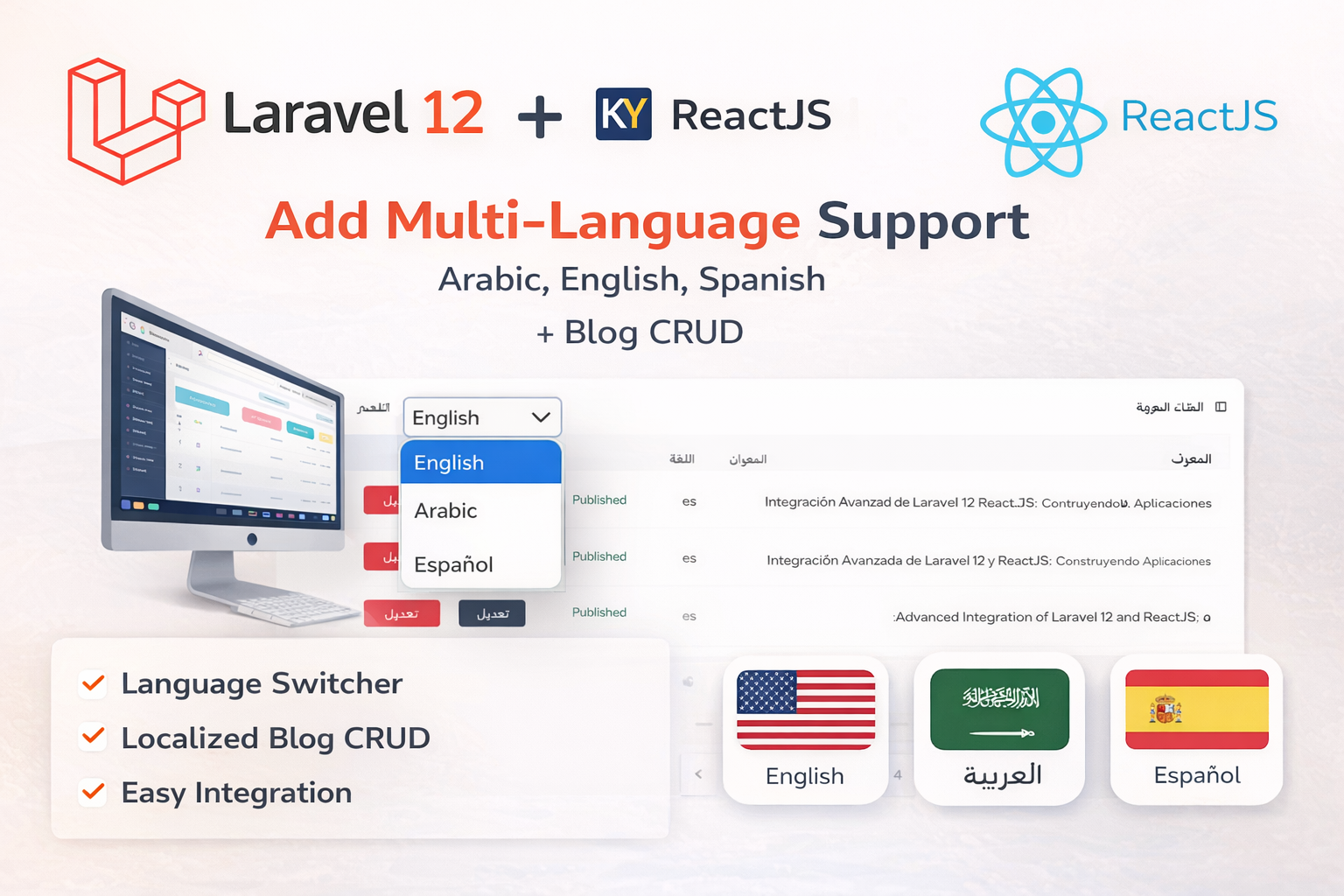
Laravel 12 + ReactJS Starter Kit: Add Multi-Language Support (Arabic, English, Spanish) with Blog CRUD
🚀 Installation & Setup Download & Extract Get the ZIP from kritimyantra.com and extract it. Includes preconfigu...
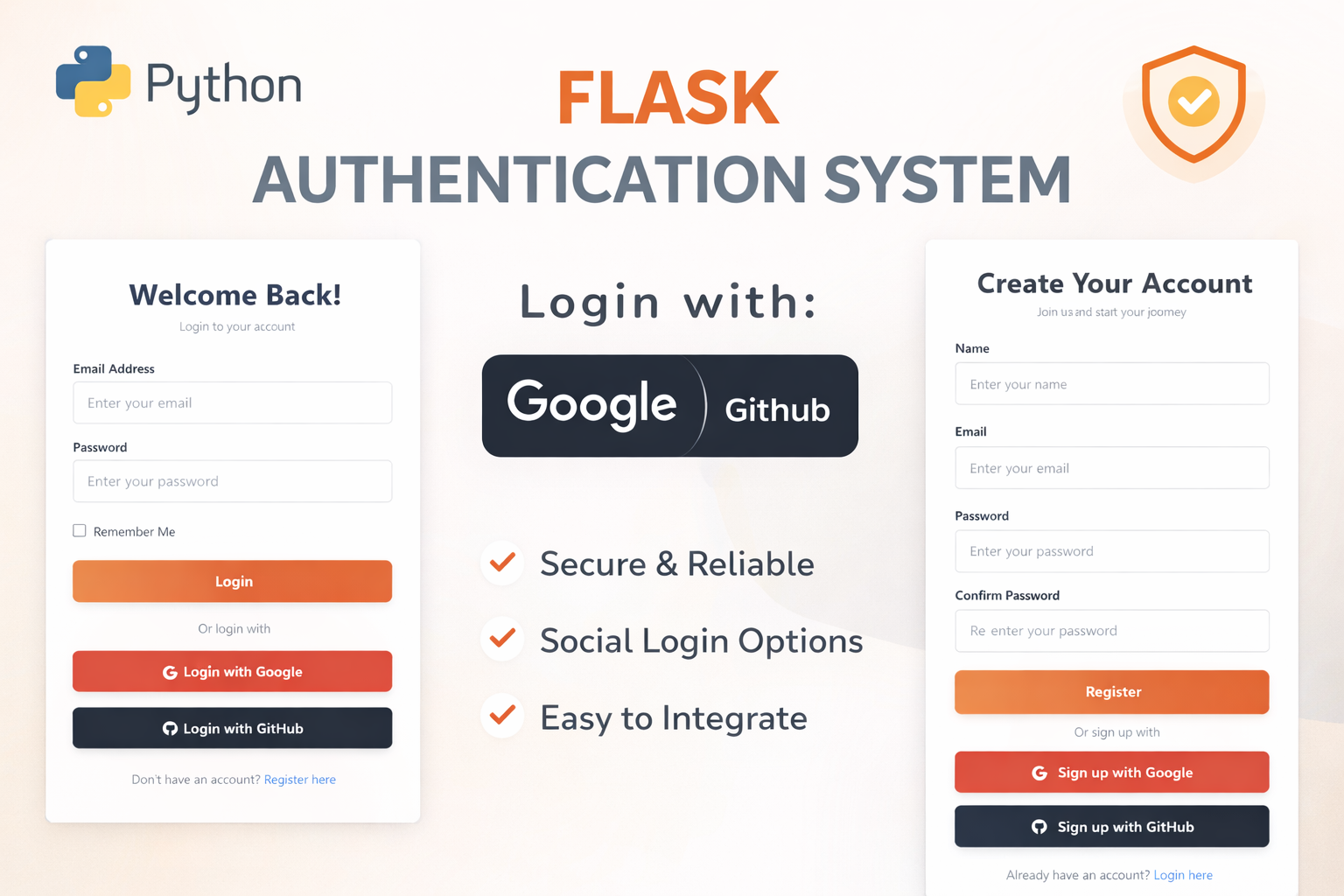
Flask Authentication System (Free Version) - Kritim Yantra
🛠 Features✔ Google & GitHub Authentication✔ User Registration & Login✔ Profile/Dashboard Access✔ Secure & Mi...
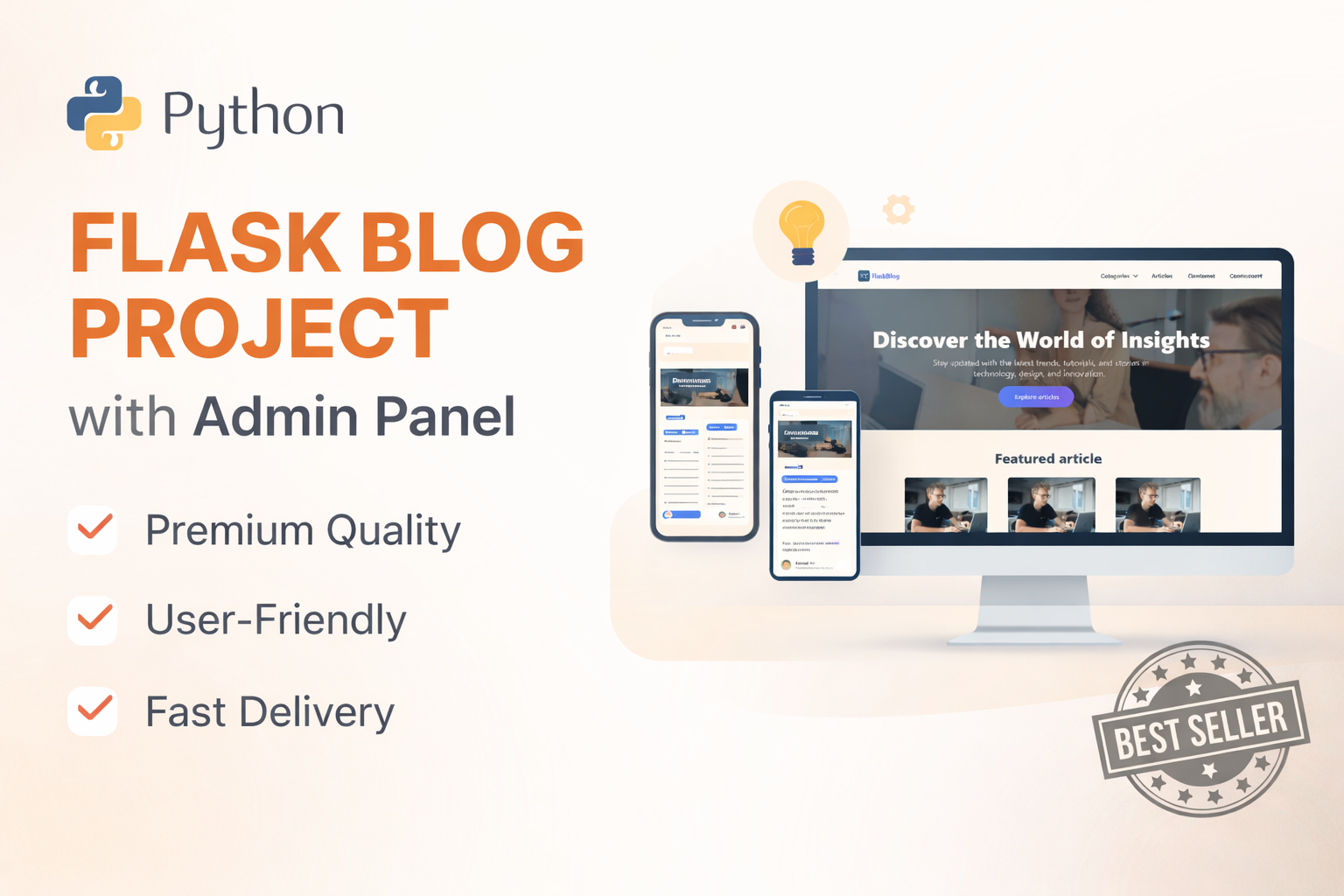
Flask Blog CMS with Admin Dashboard — Python Source Code
A Flask-based blogging website with a built-in admin dashboard. Manage articles, images, categories, tags and featured p...
Laravel 14: 12 Features It Needs in the AI Era
Laravel 14 Shouldn't Just Add More AI. It Should Change How We Build Software. 12 things I want from Laravel 14 after eight years...
AI Can Build a Laravel App in Minutes. But Can It Maintain One for Five Years?
AI is making software development faster. But the real test of a Laravel application isn't how quickly it can be generated. It's w...

8 Years With Laravel: What AI Coding Still Gets Wrong
AI can write Laravel controllers, generate migrations, build APIs, and even troubleshoot complex applications. But after eight yea...
Laravel 14 Upgrade Risks: Eloquent, Queues and Cache
A Laravel application can pass its test suite, boot successfully after an upgrade, and still behave differently in production. An...
Comments
No comments yet. Be the first to comment.
Sign in to join the discussion.